Back to Learning Center
Services
Configure service categories, pricing, duration, and availability for your business.
Adding a Service Category
To create a new service category:
1
Navigate to the "Services" section
2
Click on "Add Service Category"
3
Enter a title for the category
4
Optionally, you can:
Add a description.
Upload an image for the category.
5
Click "Save" to complete.
Once you have added a service category, you can proceed to add services. (It is recommended to first add/import professionals before adding or importing services.)
To help new merchants get started quickly, pre-added service categories and services are available based on the business category selected during registration. These can be edited or deleted as needed to fit your business requirements.
Note:
•
If you have multiple locations/branches, services must be added separately for each branch.
•
Services created in one branch do not automatically appear in other branches.
Adding a Service
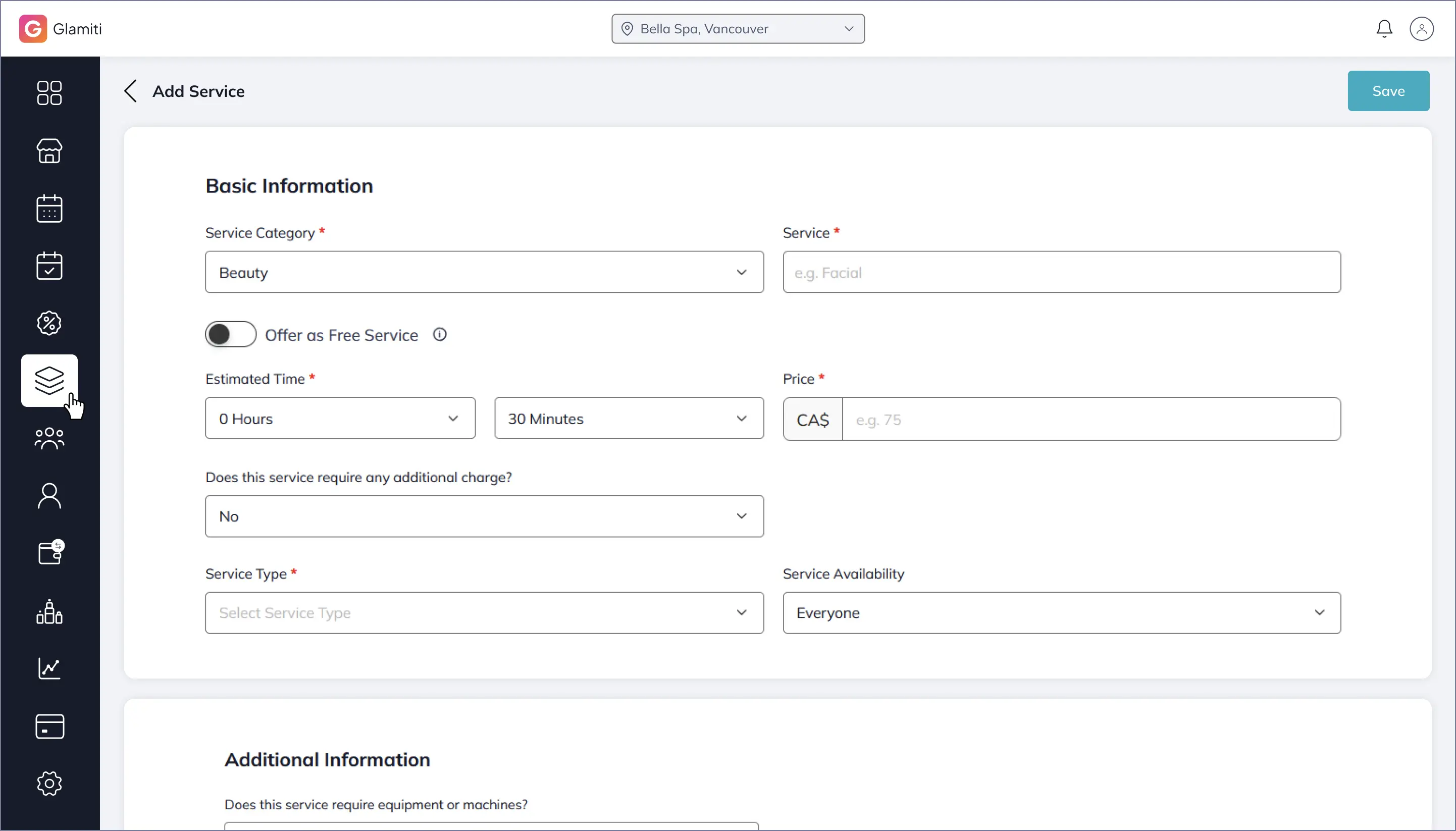
To add a new service:
1
Locate the relevant service category.
2
Click the three dots next to the category and select "Add Service".
3
Enter the service name.
4
Specify the duration and price.
5
Select a Treatment Type from the drop-down menu.
6
Choose the audience for the service under "Service Available For".
7
Add any notes (visible to customers).
8
Optionally, you can:
Upload an image for the service.
Enable online booking for the service.
Set custom pricing per professional under "Price by Professional".
Enable the commission toggle to calculate commissions based on professional settings.
Enable "Free Service" to offer the service at CA$ 0.00. (When enabled, the price cannot be changed until the option is disabled.)
9
Click "Save" to finalize.
Editing a Service & Free Service Behavior
When editing a service the Free Service option impacts the pricing settings as follows:
Changing a Paid Service to a Free Service
Enabling "Free Service" sets the price to CA$ 0.00.
The following fields will be disabled since they depend on the service price:
◦
Price
◦
Additional Pricing
◦
Sales Tax
◦
Commission
Changing a Free Service to a Paid Service
•
Disabling "Free Service" requires you to update the following fields before saving:
◦
Enter a service price.
◦
Set professional-specific pricing if required.
◦
Adjust sales tax settings.
◦
Enable commission if applicable.
Export Services
To export services, go to the Service Listing Page and click "Export Service".
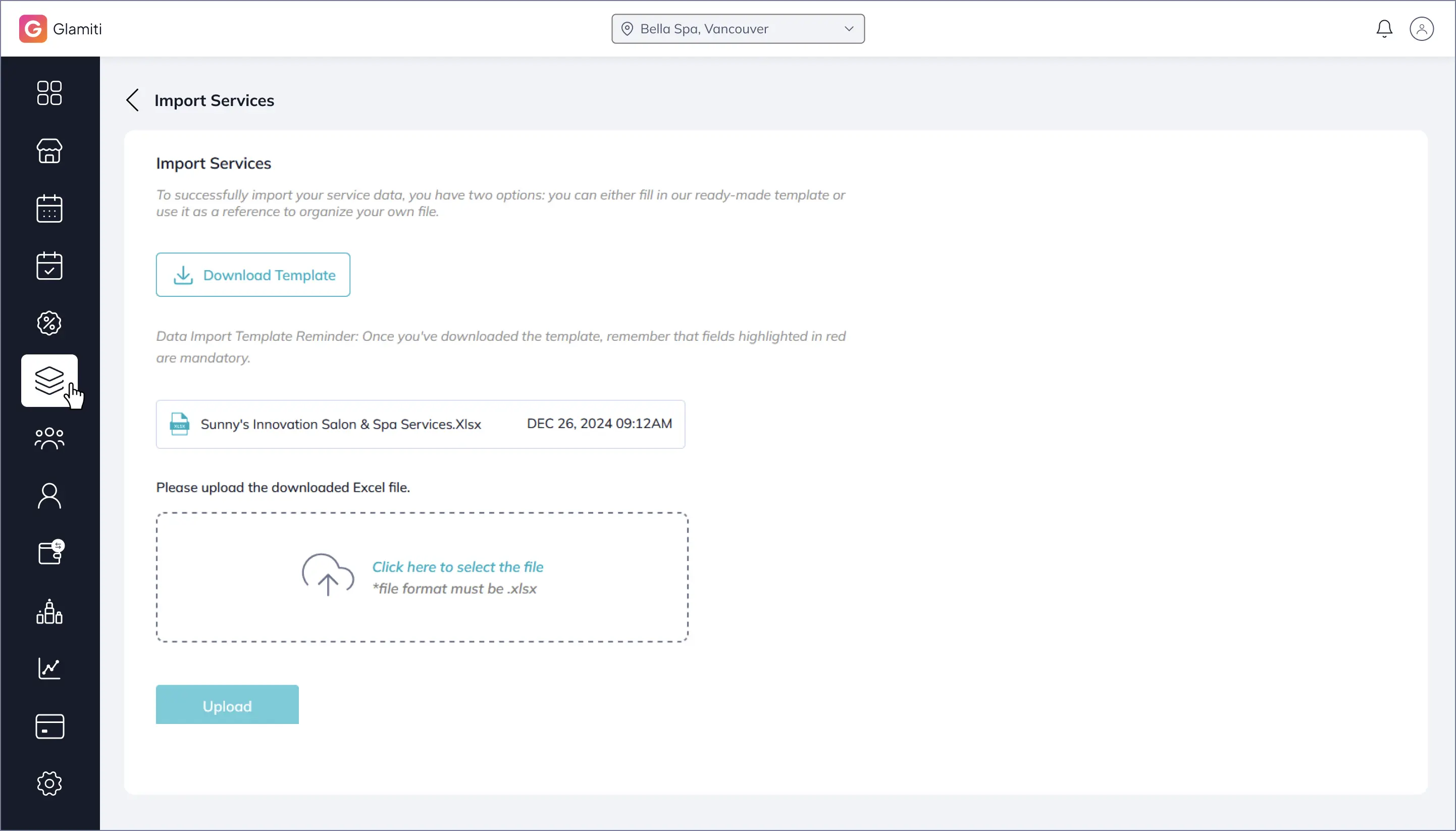
Import Services
To import services, go to the Service Listing Page and click "Import Service".