Back to Learning Center
Online Booking Confirmation
Reduce the risk of cancellations and no-shows by sending clients a booking confirmation link via Email or Text SMS. This makes phone bookings more secure and helps collect accurate client details, including contact info, credit card, and acceptance of your cancellation/deposit policy.
Enabling Online Booking Confirmation
Open the "New Appointment" screen and select a client.
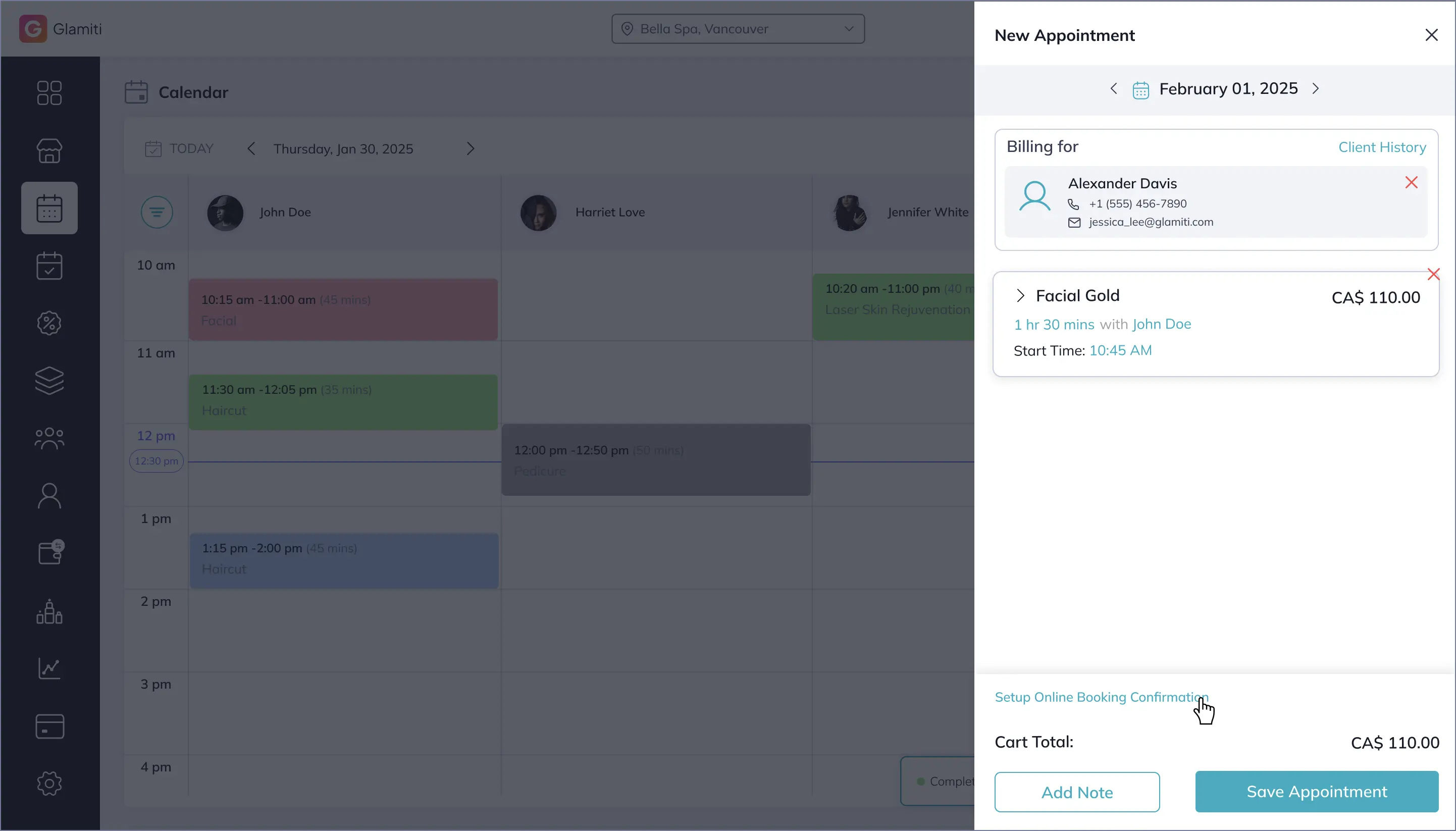
(Note: This feature is not available for "Guest" clients.)Just above the "Save Appointment" button, find the Online Booking Confirmation toggle.
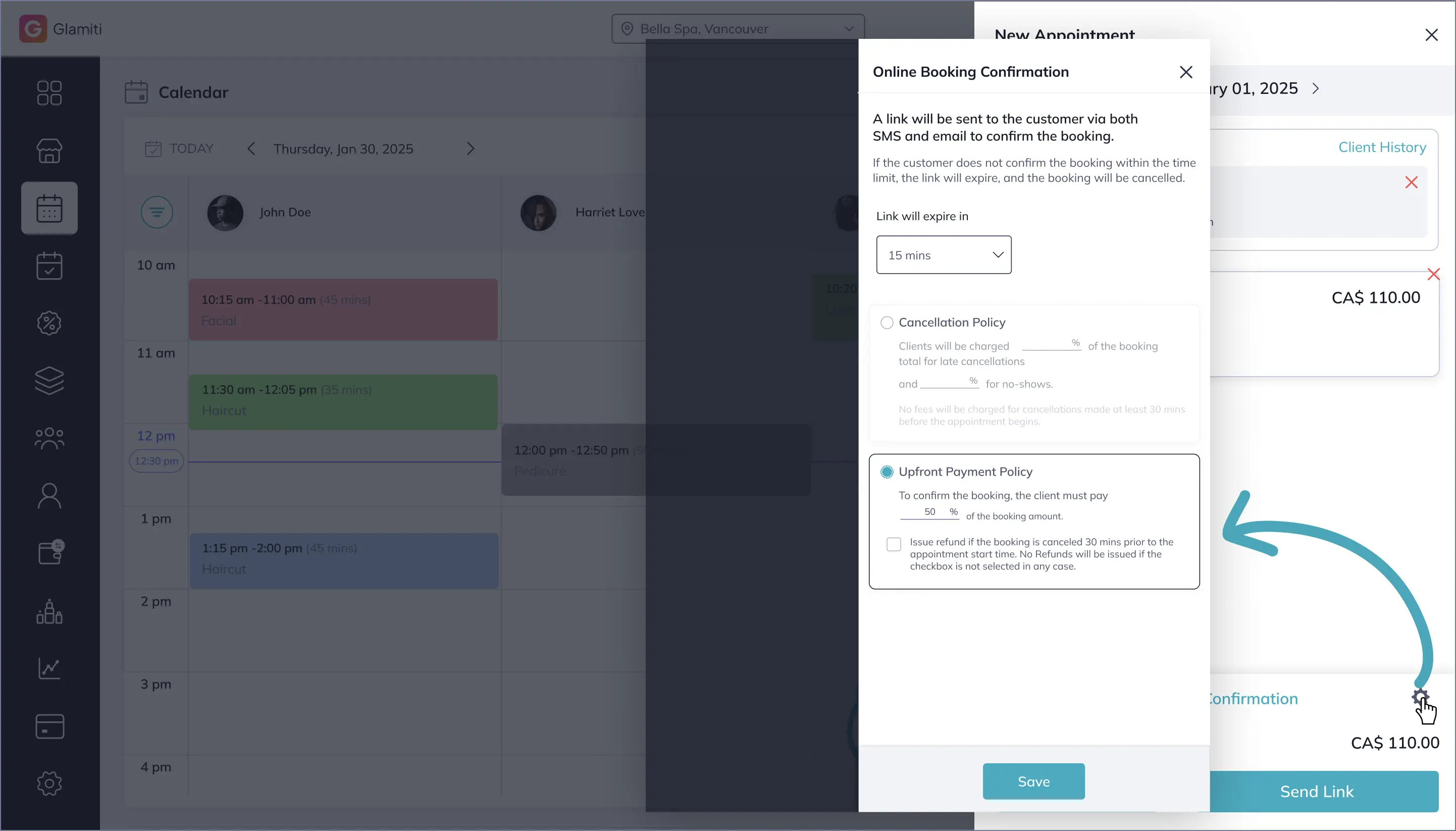
If you're using this feature for the first time, click "Setup Online Booking Confirmation" and follow the on-screen instructions to enable it.
Important:
Ensure the "Setup Payment Process" is completed before activation.
Send the Booking Link
To send a booking confirmation link via email or text message:
Select services, assign a professional, and select client.
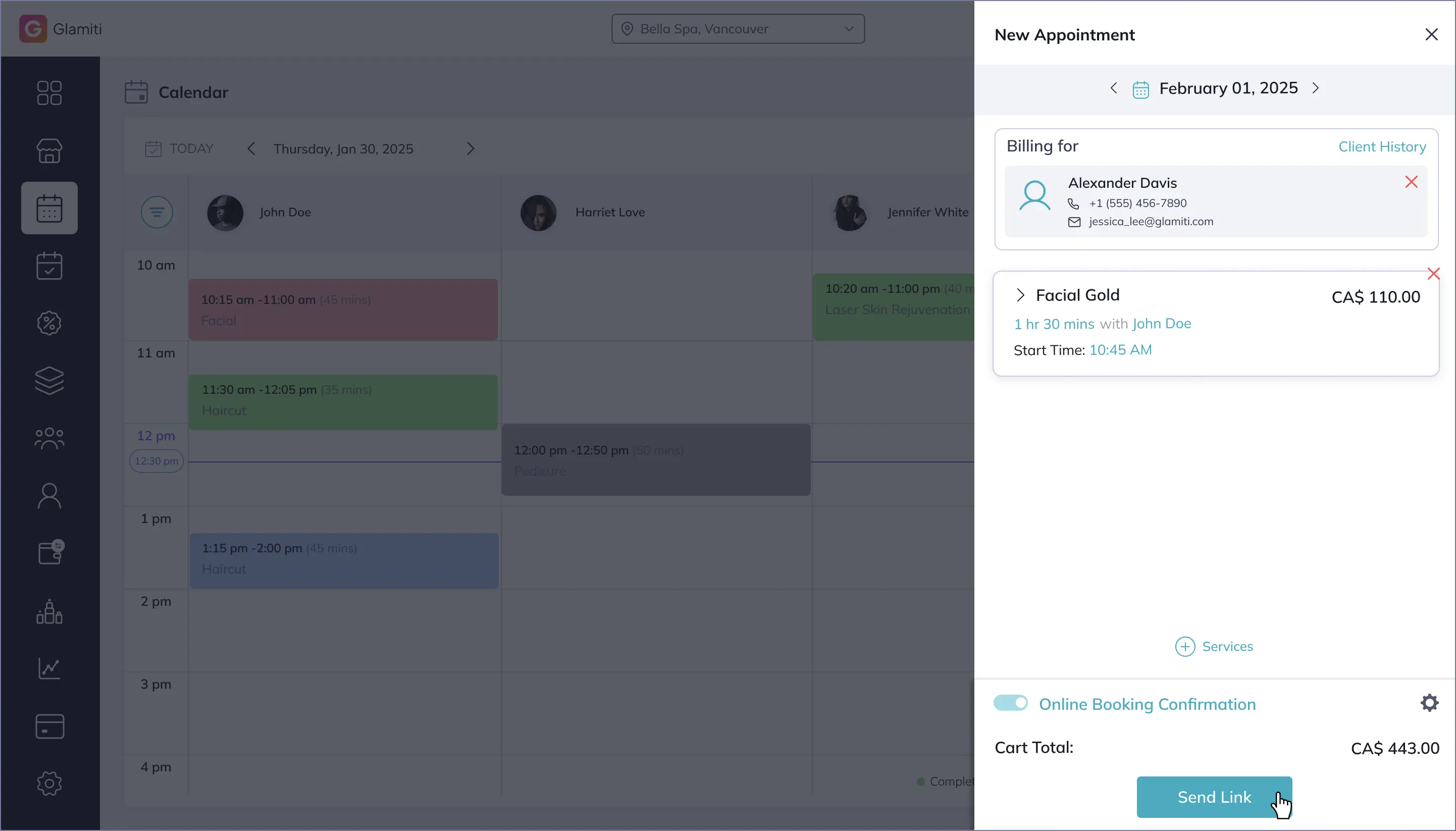
Enable the Online Booking Confirmation toggle.
A settings icon appears next to the toggle—use it to customize:
◦
Booking policy.
◦
Time duration for which the link remains active.
Once details are confirmed, click "Send Link" to send the booking link to the client via email and mobile.
Introduction to the Add Note Feature
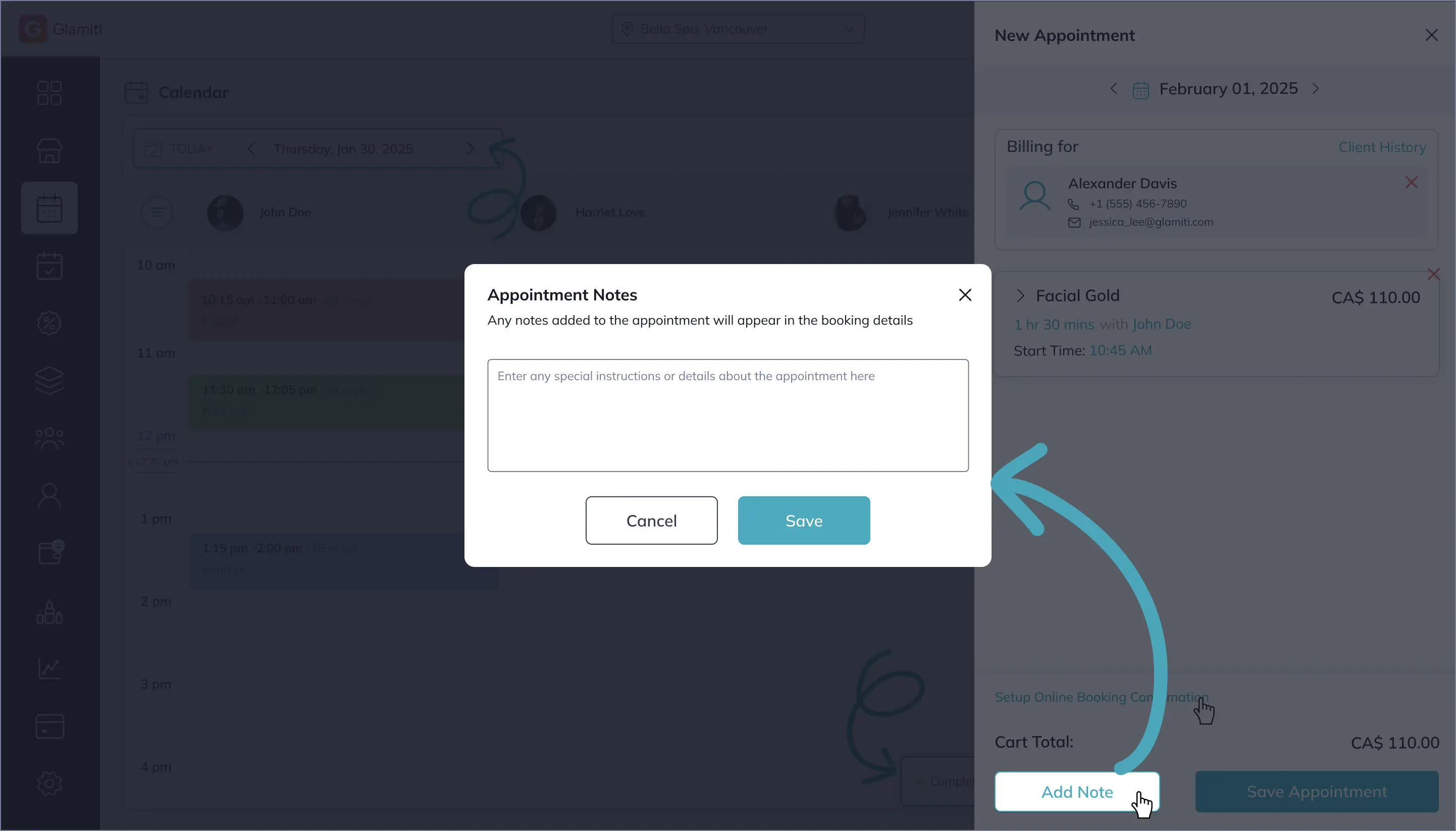
The 'Add Notes' feature in Glamiti allows both merchants and customers to share important information related to appointments. This functionality ensures smooth communication, covering any special instructions or additional details needed for a seamless service experience.
For Merchants:
Adding Notes:
Merchants can add notes to any appointment. These notes can include details related to client preferences, special instructions, or any other relevant information about the services booked.
Visibility:
The notes added by the merchant are visible in the booking details within the Glamiti dashboard and are also included in the booking confirmation email sent to the customer.
Note Expiry:
Once an appointment is marked as Completed, Cancelled, or No-Show, the notes will no longer be visible in the invoice or booking details. They are automatically removed to maintain a clean record.
For Customers:
Adding Notes During Online Booking:
Customers can add notes while making an online appointment. This is useful for sharing specific requests or instructions directly with the merchant regarding the services they've booked.
Merchant Editing Rights:
Notes added by customers can be viewed and edited by the merchant when managing or updating the appointment details. This ensures that any critical information can be clarified or adjusted as needed.
Purpose of This Feature:
The 'Add Notes' functionality is designed to facilitate clear communication between merchants and customers. Whether it's a special service request, a preferred technique, or specific instructions, this feature ensures that important details are easily captured and conveyed during the appointment booking process.
Managing & Resending Booking Links
Glamiti provides multiple options to add tips and accept payments seamlessly.
After sending the booking link, you can resend it if the link expires.
You can also edit the appointment and resend the link, but only before the client confirms the booking.
Once the client confirms the appointment, it will appear as a confirmed booking on the calendar, and the link will no longer be active.
Customize Settings
You can customize the Booking Policy based on the client profile.
Each client is different, and the policy settings can be customized accordingly for each client profile.