Back to Learning Center
Client Management
Keep your client records organized and up to date by adding, editing, and tracking client interactions.
Adding & Editing Clients
Adding a New Client
1
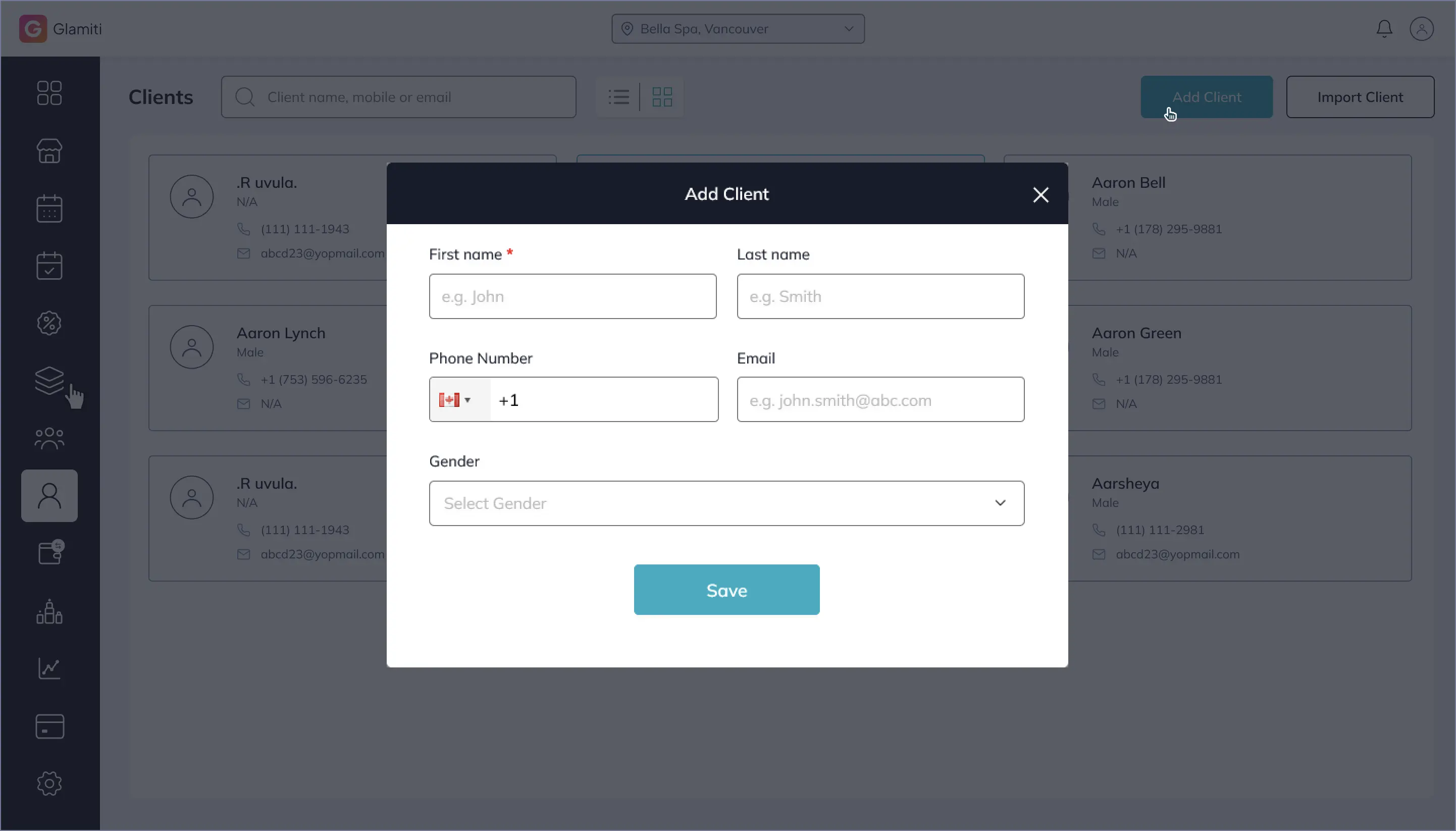
Navigate to the Clients section.
2
Tap the plus icon (Add Client).
3
Enter the First Name, Last Name, Mobile Number, Email, and Gender.
4
Tap Save to add the client.
Adding a Client During an Appointment or Sale
1
Go to the Add Appointment or New Sale page.
2
Tap Create New Client.
3
Fill in the Client's Information and tap Save.
Editing an Existing Client
1
Open the Clients section.
2
Select the client you want to edit.
3
Tap the Edit icon and update details as needed.
4
Tap Save to finalize changes.
Client Overview & Interaction History
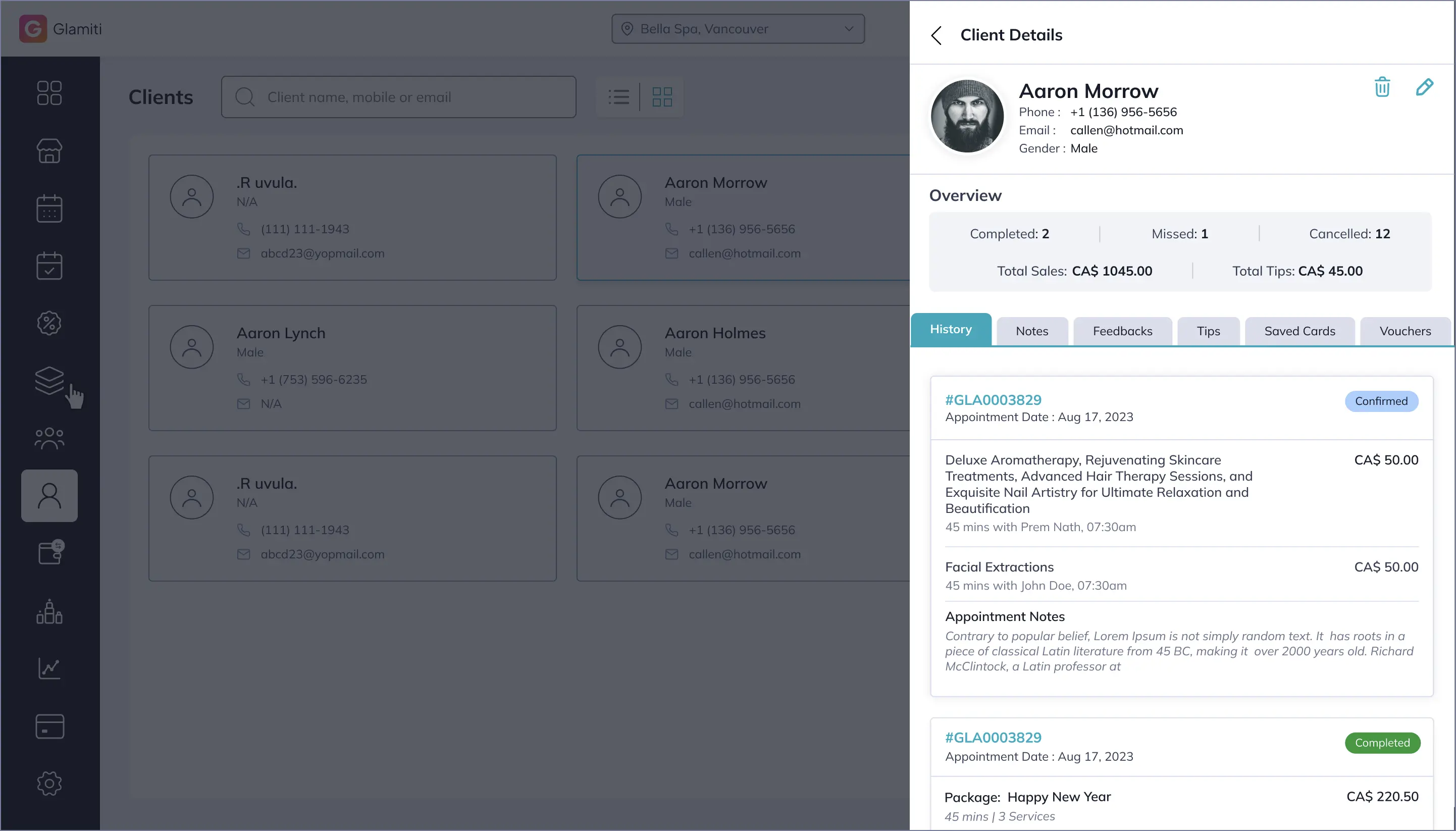
Glamiti provides a detailed client profile, including appointment and sales history, feedback, saved payment methods, and more.
Client Overview Section Includes:
•
Completed, Missed, and Canceled Appointments Count
•
Total Sales(from services, products, and vouchers)
•
Total Tips Collected
Appointment & Sales History
•
View past and upcoming appointments.
•
Track canceled, missed, or completed bookings.
•
See a breakdown of products, services, and vouchers purchased.
Client Activity Tracking
All client interactions are categorized into different sections for easy tracking.
History
This section provides a complete timeline of all the client's interactions, including:
•
Appointments: Completed, canceled, and missed appointments.
•
Sales History: Products, services, and vouchers purchased.
•
Total Spending & Visit Trends: Helps track client engagement over time.
Notes
Store important notes and documents related to the client, such as:
•
Specific preferences or allergies.
•
Documents like consent forms or medical waivers (if applicable).
•
Internal team notes for better service customization.
Feedback
Displays client feedback submitted on completed services or purchases, helping businesses:
•
Evaluate service quality.
•
Identify areas for improvement.
•
Enhance customer experience based on direct feedback.
Tip History
Tracks all tips given by the client over time, including:
•
Tips provided at checkout.
•
Staff members who received the tips.
•
Total tipping trends.
Saved Cards
•
Shows all credit/debit cards saved by the client for faster transactions.
•
Clients can store multiple cards for seamless payments.
•
Used for quick checkouts and automatic billing.
Vouchers
Displays all vouchers purchased by the client along with their status and remaining balance.
Voucher Details Include:
•
Voucher Value: The original amount of the voucher.
•
Remaining Balance: If partially used, the balance is shown.
•
Status:
◦
Active: Can still be redeemed.
◦
Partially Used: Some value remains.
◦
Expired: No longer valid.
◦
Fully Redeemed: Used up completely.
Import Client
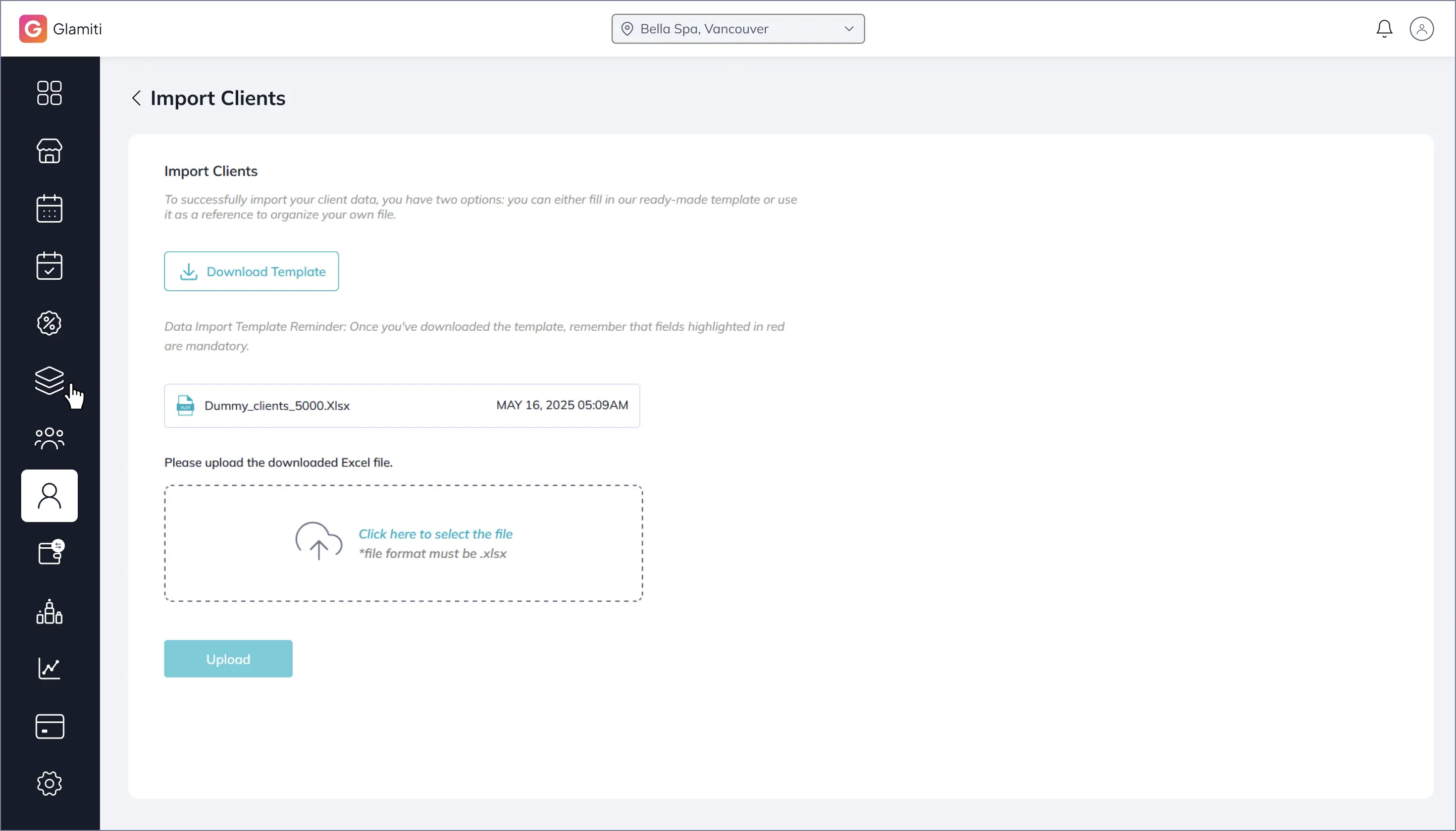
You can import the clients on your system. Just go to the client listing page and click on Import Clients button.